
Bookify walkthrough · Sports & coaching camps
Get ready for the camp day
Open a camp run, check its roster and find the daily attendance tools.
Follow along in Next Play Sports Camp, our fictional sample camp.
Choose the right camp and week
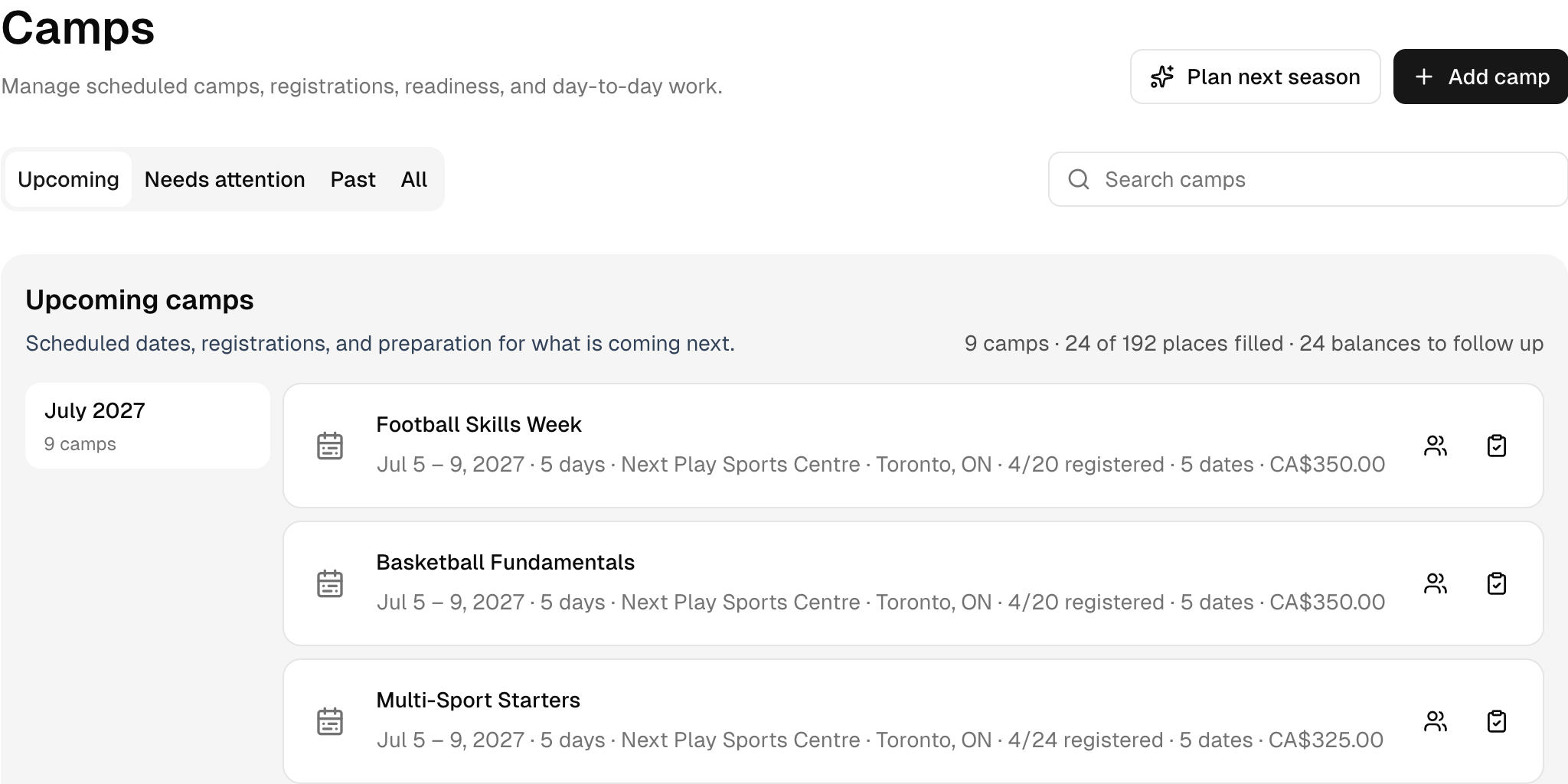
Open Camps
Open the camp dashboard, then find Basketball Fundamentals. Check the date range as well as the name. The same program can run in several weeks.
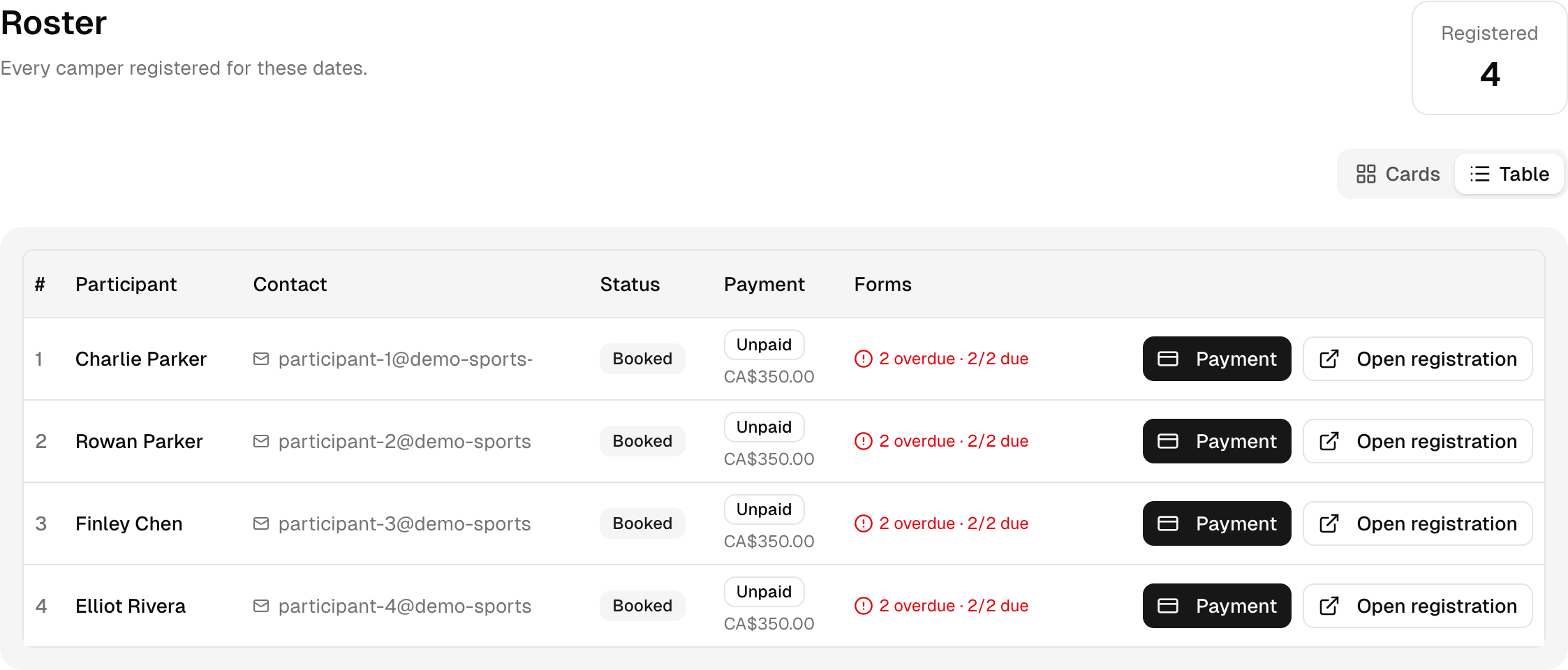
Open its Roster
Roster shows who is registered for that run. Use Open registration beside a person to read that registration. Check the participant, the managing adult where relevant, and any forms or balance that need attention.
Record what happens each day
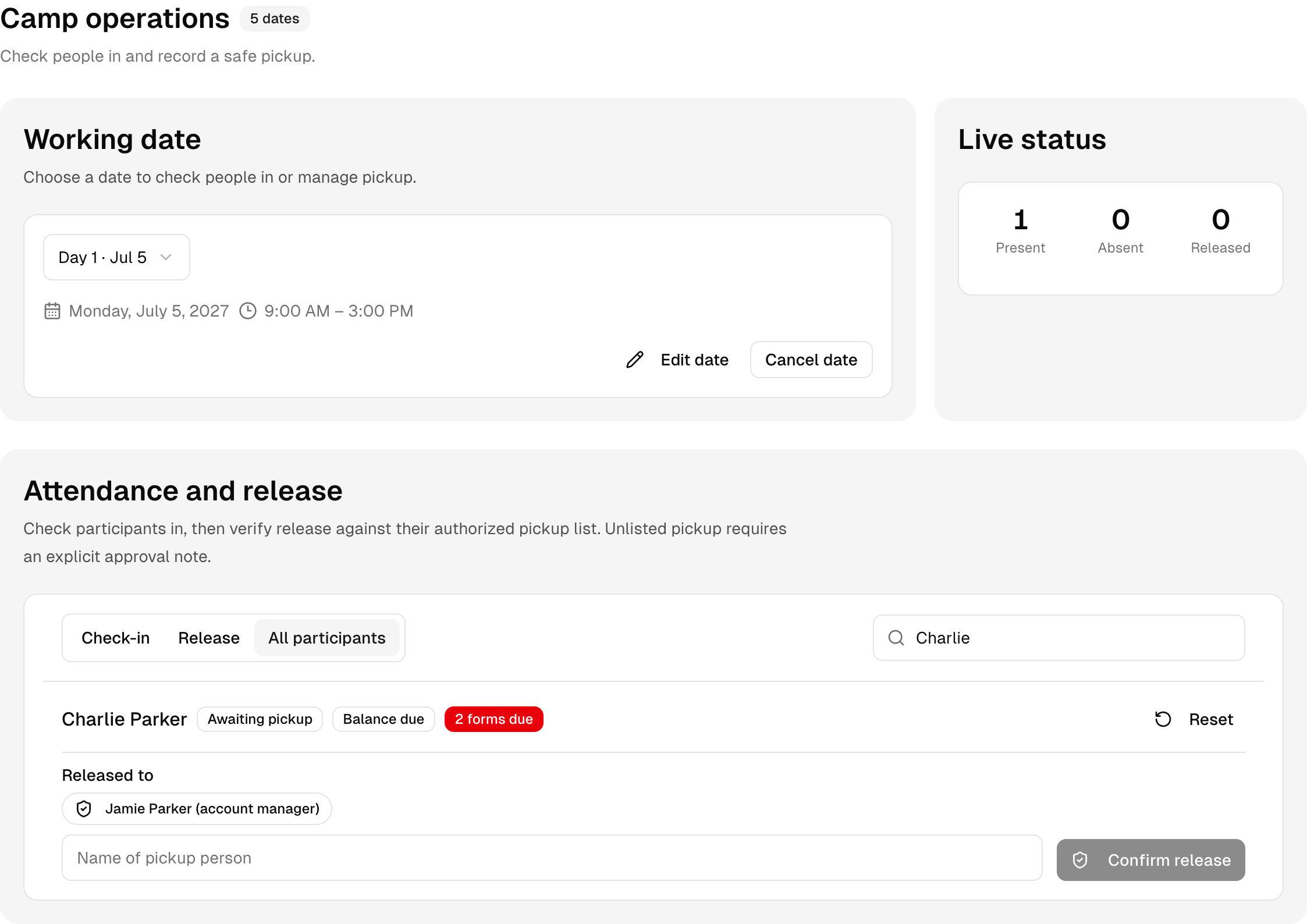
Choose Camp day, then Operations
Open Camp day on the run, then choose Operations. Use Camp date to choose the right day. Check the date and time before changing attendance.
Try a check-in with sample data
Choose Check in beside a made-up participant. The Present count changes. Reset lets you clear the practice mark. Absent records an absence. In your real camp, follow your team’s arrival and head-count process.
Handle departure with care
For a children’s camp with pickup enabled, check the permitted adult before release. In the demo, Jamie Parker is the managing adult for Charlie and Rowan. Select the correct person and use Confirm release only after the real-world check. A screen does not replace that check.
Prepare the next day
Leave a clear handover
Check staffing, arrival information and unresolved questions for Next Play Sports Centre. Two ten-year-olds have very different experience. Ask about experience as well as age, then let a coach review group placement.
Use the guide alongside Bookify
Bookify keeps the records together. Your camp plan still needs trained staff, clear responsibilities and the checks for your activities and location. Use the full guide to prepare that work before opening.
Screenshots captured in Bookify on September 19, 2026. All sample records are fictional. This walkthrough covers the screens shown here; labels may change as Bookify improves.
Your own practice camp
Go on. Try it.
Open a ready-made camp with sample programs, people and bookings. No sign-up or card needed. Your changes stay in your demo, which expires after 24 hours.
All people, camps and prices are made up. Use made-up details while you explore. Payments are for practice. No real card payment is taken.
Read it. See it. Try it.
Keep learning
Create your camp program
Set the name, age range, places and price. Then add the dates people can book.
Try a camp registration
See the booking page, choose a camp and check what the person booking needs to know.
Read the full guide: Run safe arrivals, transitions, and pickup →