
Bookify walkthrough · Faith & community camps
Try a camp registration
See the booking page, choose a camp and check what the person booking needs to know.
Follow along in Common Ground Camp, our fictional sample camp.
Start with the person booking
Open the family account
Use the family demo button below. You arrive already signed in as Jamie Parker, with sample bookings to explore. No new account is needed.
Open Booking page in the demo bar
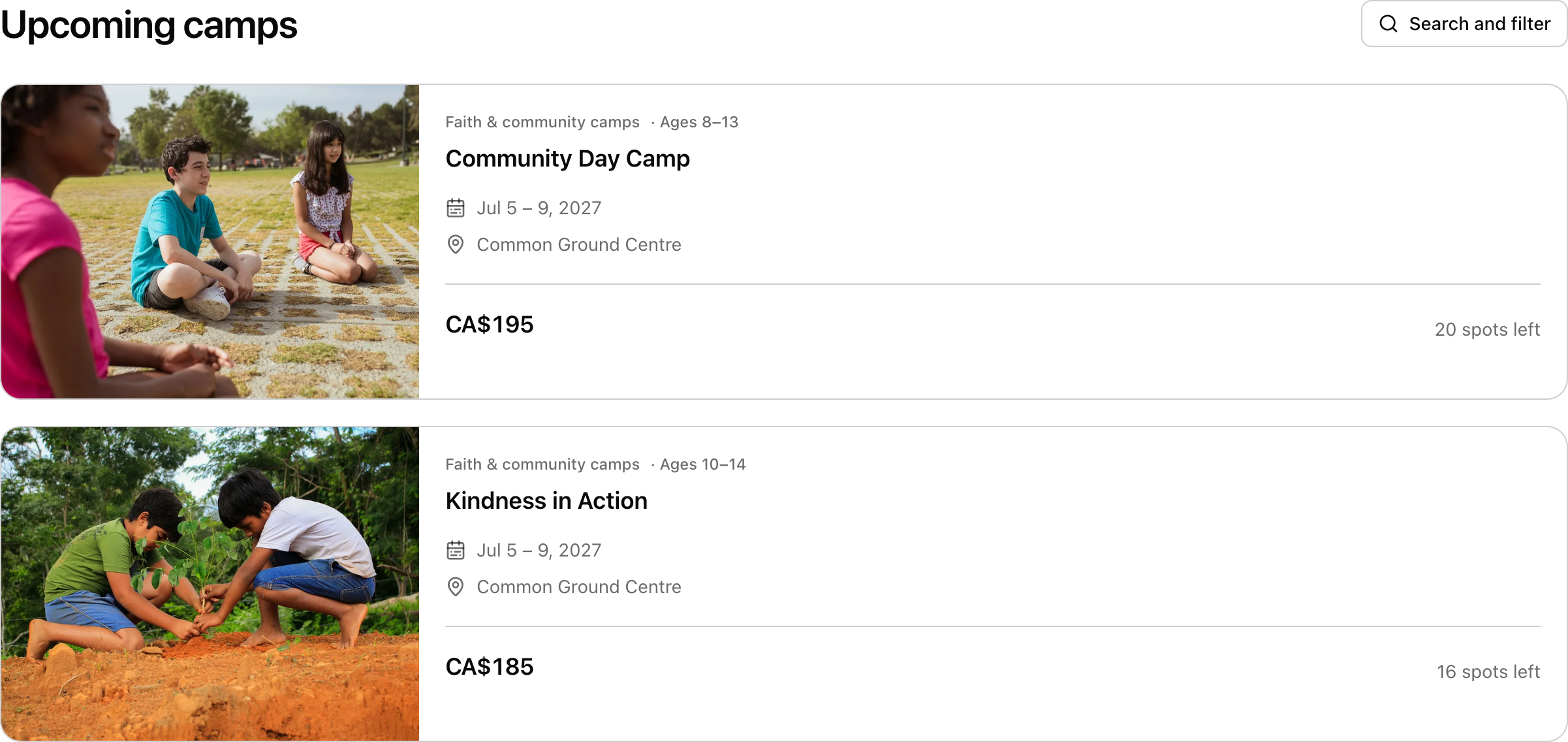
Find Community Day Camp. Choose its last available week to practise a new booking. The earlier weeks already have sample registrations. Check the dates, $195 CAD per-person price and available places.
Check who is coming and what they need
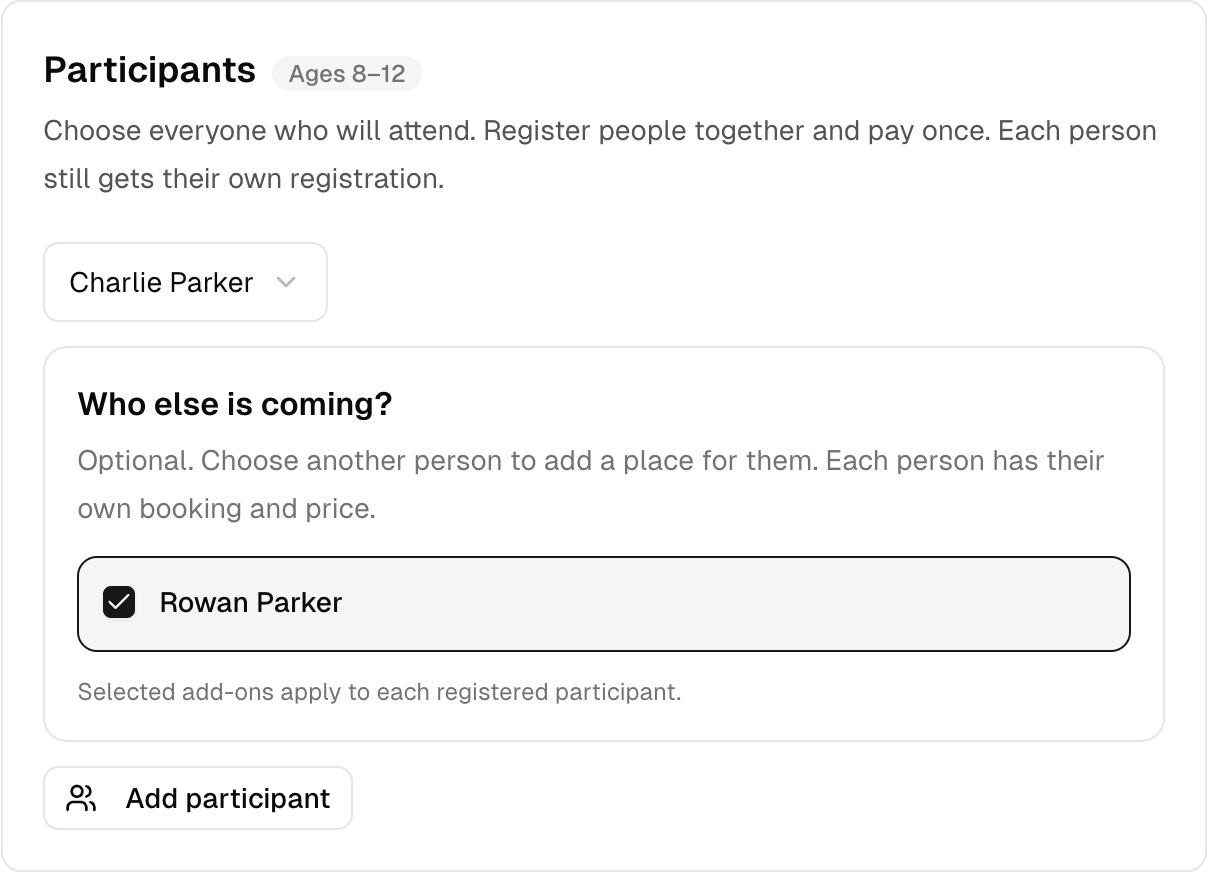
Choose the participant
Choose Charlie Parker or Rowan Parker in Participant. Jamie is the adult managing the booking. To register both children, choose the second child under “Who else is coming?”
Choose extras only if you need them
The demo offers lunch for the week for $25 CAD. Check who the extra is for and review the total. You can skip it. A family asks for help with the fee. Keep the request away from a public roster and give one named staff member a clear follow-up task.
Review the practice payment summary
The demo uses Pay After. Due now should be $0. Any amount shown as Due later is a made-up example balance. Read the camp details before confirming. Do not enter a real card or real personal information.
See what the account keeps together
Return to your account
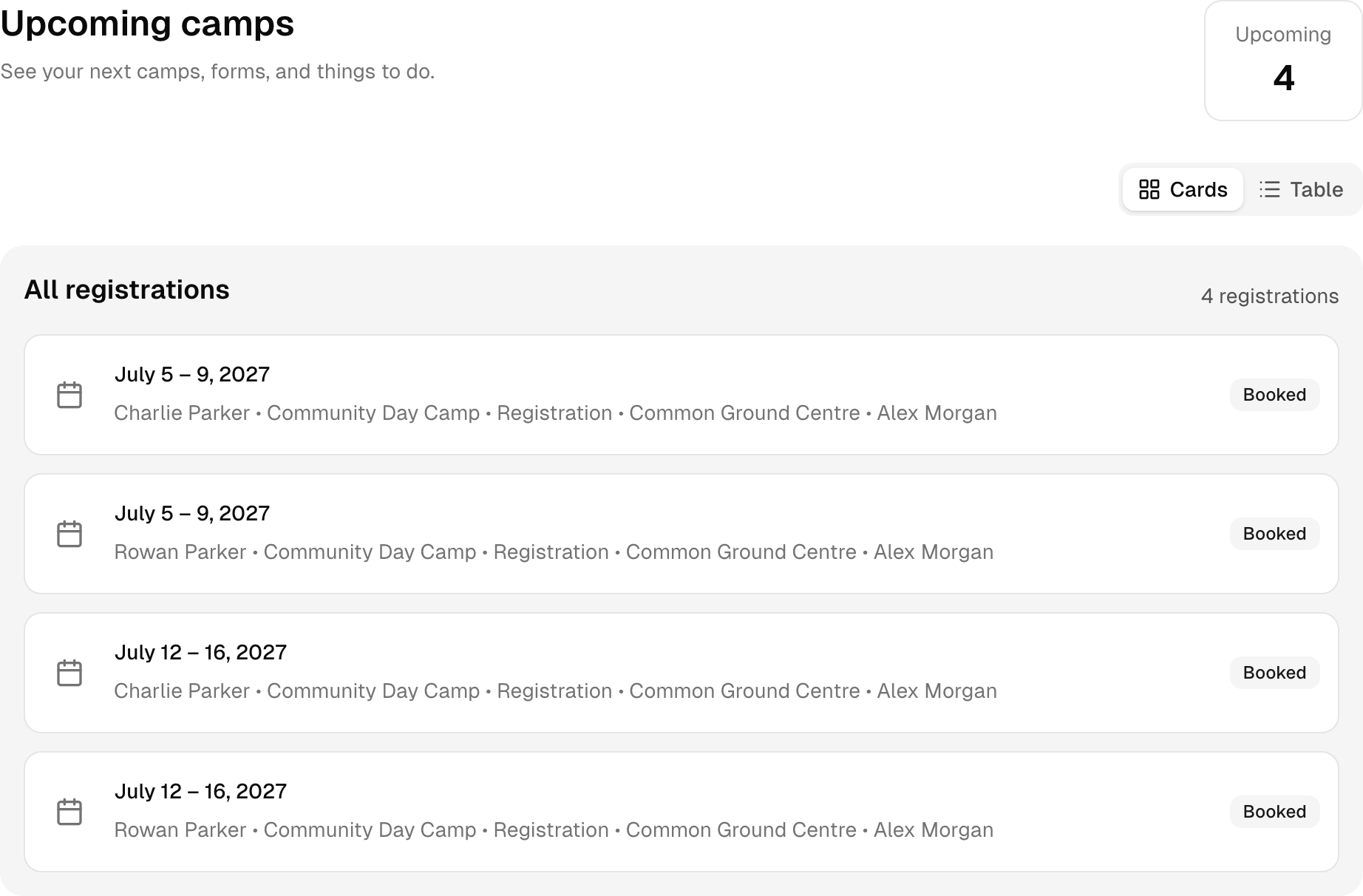
Open Family account or Participant account in the demo bar. Upcoming camps shows the prepared sample registrations. Open one to see its dates and details. A registration you finish in the demo will appear here too.
Look at the forms and household details
Use Forms & Waivers to find requested forms. In a family account, People keeps the people managed by that account together. Review which information your real camp needs before you ask families to provide it.
Screenshots captured in Bookify on September 19, 2026. All sample records are fictional. This walkthrough covers the screens shown here; labels may change as Bookify improves.
Your own practice camp
Go on. Try it.
Open a ready-made camp with sample programs, people and bookings. No sign-up or card needed. Your changes stay in your demo, which expires after 24 hours.
All people, camps and prices are made up. Use made-up details while you explore. Payments are for practice. No real card payment is taken.
Read it. See it. Try it.
Keep learning
Create your camp program
Set the name, age range, places and price. Then add the dates people can book.
Get ready for the camp day
Open a camp run, check its roster and find the daily attendance tools.
Read the full guide: Market the camp without hiding its identity →